

Microsoft offers the .NET Framework 3.5 on Windows 11, 10, and 8. This option simplifies installation and compatibility for various software. So, you need the ‘Turn Windows Features On or Off’ option. It enables this specific version efficiently.
But it would be best to have an Internet connection to do this. So, if you want to install the NET Framework without an internet connection, you must download an offline package. Thus, you can easily install version 3.5 or later on your system using the offline software we shared in this article.
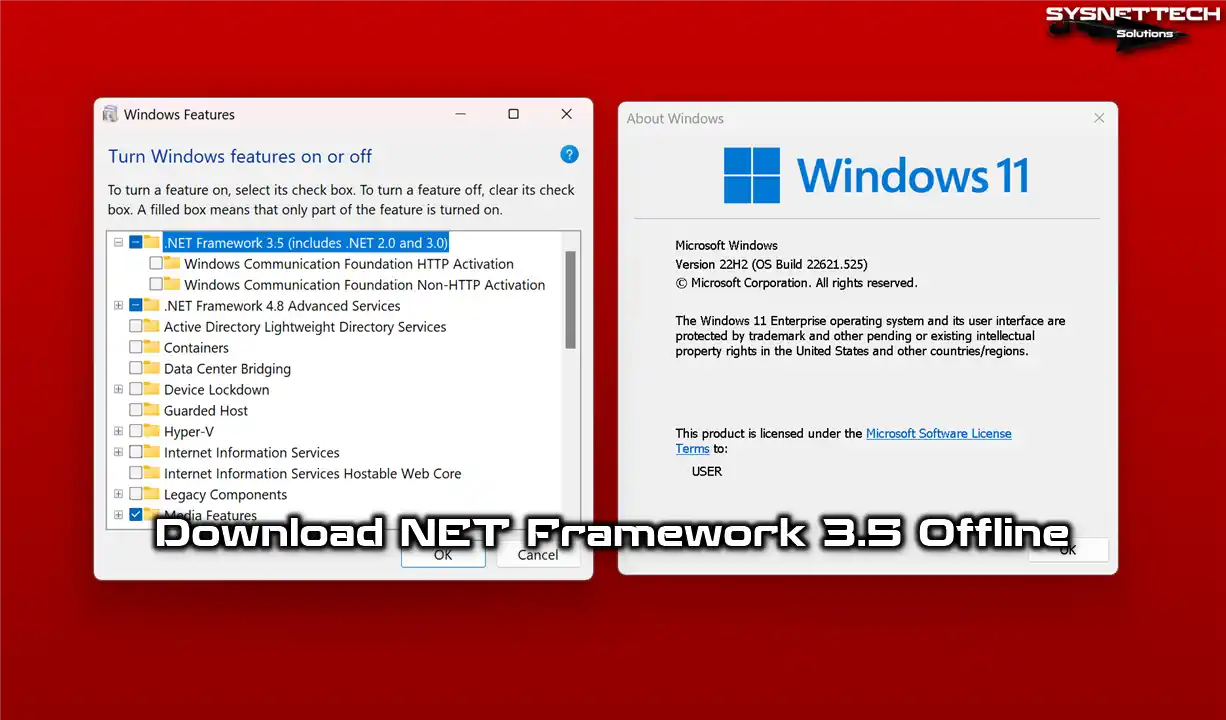
How to Download .NET Framework 3.5 Package Offline?
Suppose you have Windows 8, 8.1, 10, or 11 running on your physical computer. In this case, when you want to run a 3rd Party software that needs Microsoft DotNet, you will encounter a problem like the image below.
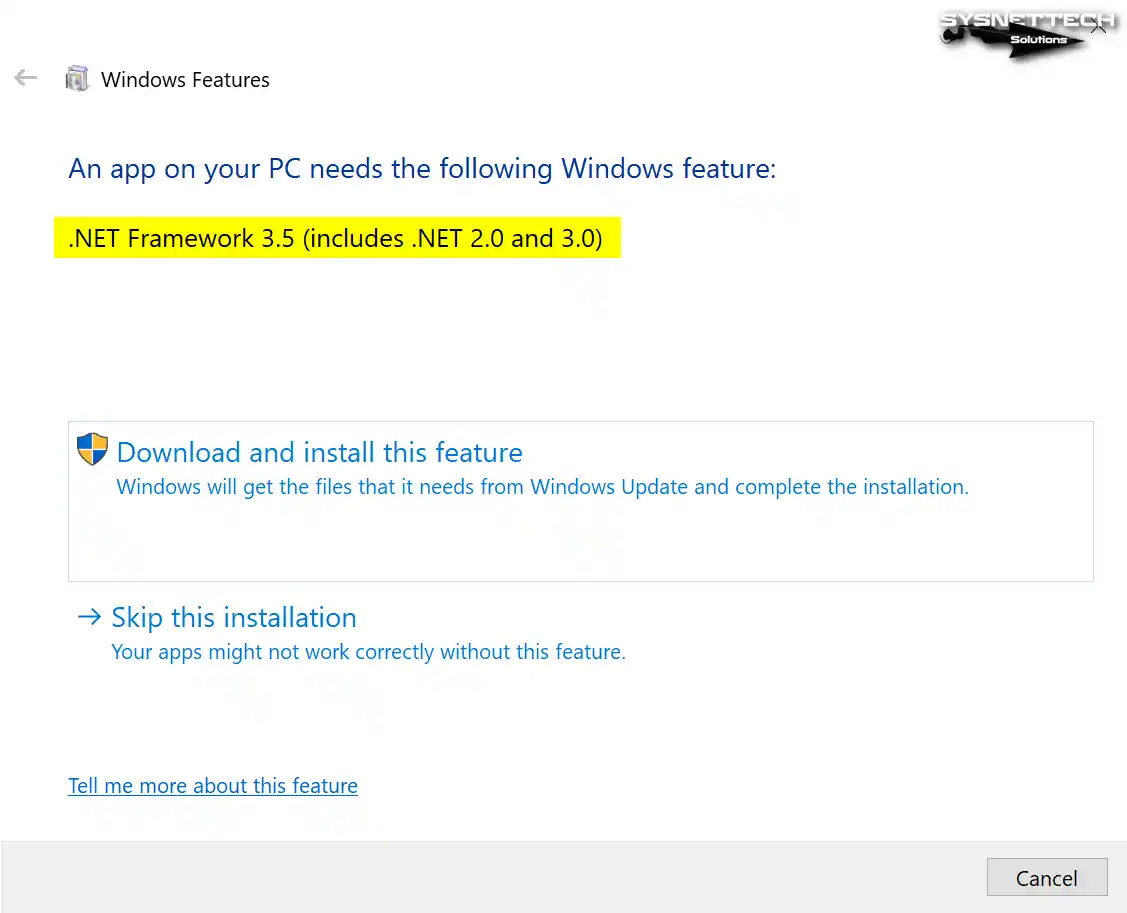
Look at this picture. It means you need to install something for your program. You have two choices.
Here’s a choice: Option one has an “Install this feature” button. If you pick this, you’ll need the Internet and check “Windows Update” in “services.msc” to ensure it’s on.
You can also choose option two: Click “Skip this Installation.”
Pick the first choice if your computer runs genuine Windows and updates well. However, if you’ve turned off the Windows Update service, you must add this package to your system without Web access.
Download and Install the Offline NET Framework 3.5 on your Computer
Moreover, even when using a genuine Windows OS, you can install the .NET Framework offline to save your web data limit.
Windows N and KN versions lack enough media tools. This shortfall can be fixed with the Media Feature Pack. Offline ways also work here; you can download and set up the pack even with no internet link.
Usually, you can install the .NET Framework on your Windows systems in two ways.
- A Pre-Prepared Offline Package
- ISO File with DISM Tool Without Internet
You can also install it using your system’s installation media. You can also install it offline using an ISO file.
But sometimes, you need an ISO file or the Internet. In such cases, you can easily install DotNet on one or more devices using a software package you got earlier.
In brief, you can install the offline NET Framework package on all your clients’ computers if you work in IT. You can download it to save time and work faster.
So, downloading the offline package will be more beneficial for you. You can download the NET Framework version 3.5 to your PC by clicking the download buttons below.
These packages work well with these systems:
- Windows 11
- Windows 10
- Windows 8.1
- Windows 8
Download NET Framework 3.5 for Windows 11, 1o, and 8x
Windows 11
| No | Windows Versions | Links |
| 1) | Windows 11 version 23H2 | Download |
| 1) | Windows 11 version 22H2 | Download |
| 2) | Windows 11 version 21H2 | Download |
Windows 10
| No | Windows Versions | Links |
| 1) | Windows 10 version 22H2 | Download |
| 2) | Windows 10 version 21H2 | Download |
| 3) | Windows 10 version 21H1 | Download |
| 4) | Windows 10 version 20H2 | Download |
| 5) | Windows 10 version 2004 (20H1) | Download |
| 6) | Windows 10 version 1909 | Download |
| 7) | Windows 10 version 1903 | Download |
| 8) | Windows 10 version 1809 | Download |
| 9) | Windows 10 version 1803 | Download |
| 10) | Windows 10 version 1709 | Download |
| 11) | Windows 10 version 1703 | Download |
| 12) | Windows 10 version 1607 | Download |
| 13) | Windows 10 version 1511 | Download |
| 14) | Windows 10 version 1507 | Download |
Windows 8 & 8.1
| No | Windows Versions | Links |
| 1) | Windows 8 | Download |
| 2) | Windows 8.1 | Download |
NOTE: All download links include only the DotNet 3.5 version.
What are the DotNet 3.5 System Requirements?
For Windows 11, 10, 8, or Server 2012 versions installed on your PC, the most basic hardware requirements for NET Framework 3.5 are as follows:
- Processor: A remarkably swift processor that operates at one gigahertz (GHz) or faster.
- RAM: Ensure you have at least 512 megabytes (MB) of available RAM.
- Free Disk Space: Allocate approximately 2 gigabytes (GB) of free space on your hard drive for the installation.
Indeed, you can ignore these needs if you have a modern computer. But it’s good to be aware of them when dealing with an ancient PC.
However, computers with faster processors and more RAM work better for .NET Framework programs.
Method 1: How to Install the NET Framework 3.5 Offline Software Package
Follow these straightforward steps once you’ve downloaded the setup package to your PC.
Steps:
Step 1
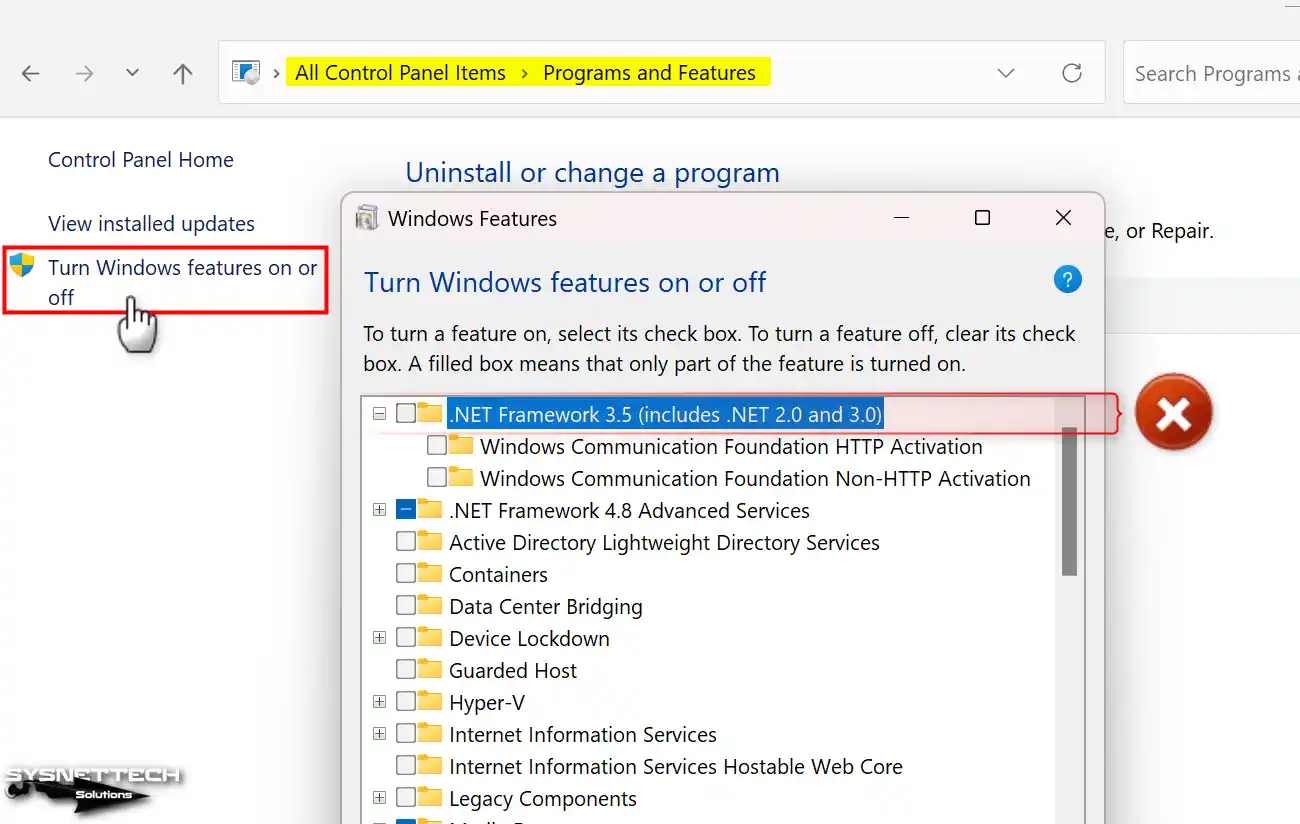
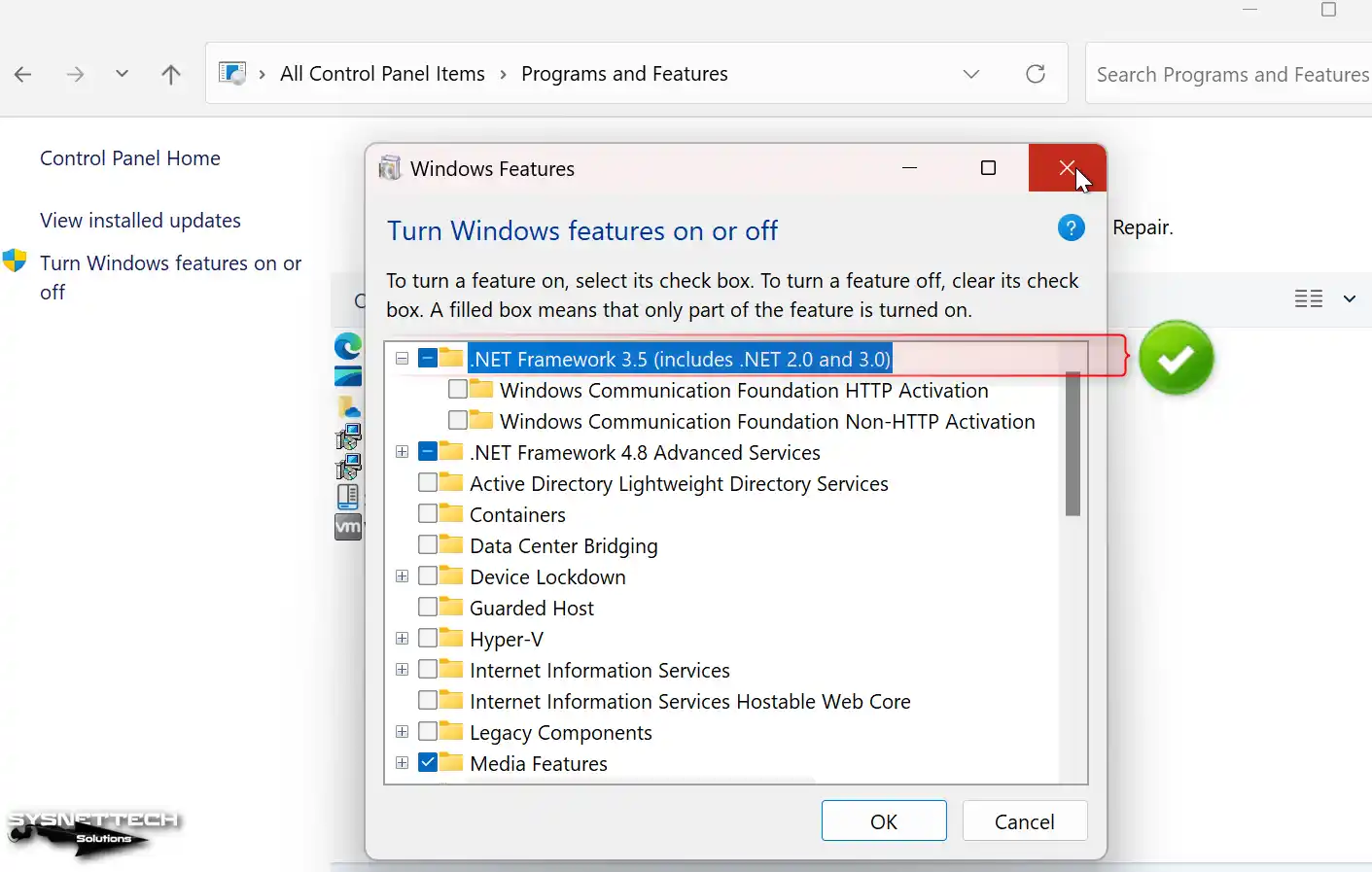
Before anything else, the first thing you need to do is to check whether the NET Framework 3.5 is installed on your system. To do this, open the Control Panel on your Windows 11 PC. You will see the installed applications after clicking Programs and Features from here. To view more advanced settings, click Turn Windows Features on or off from the options on the left panel.
When a small window opens, as in the image below, you will see ‘.NET Framework 3.5 (includes .NET 2.0 and 3.0)’ at the beginning. If the checkbox for this option is not checked, you can understand that it is not installed on your system.
NOTE: It’s possible to enable the Telnet client in the Windows Features window. Simply check the relevant box. This will sound familiar: just like .NET 3.5, Telnet is added from here.
Step 2
After this process, you must check the Windows OS and build the version you use for the offline DotNet package, which you will download from the table above.
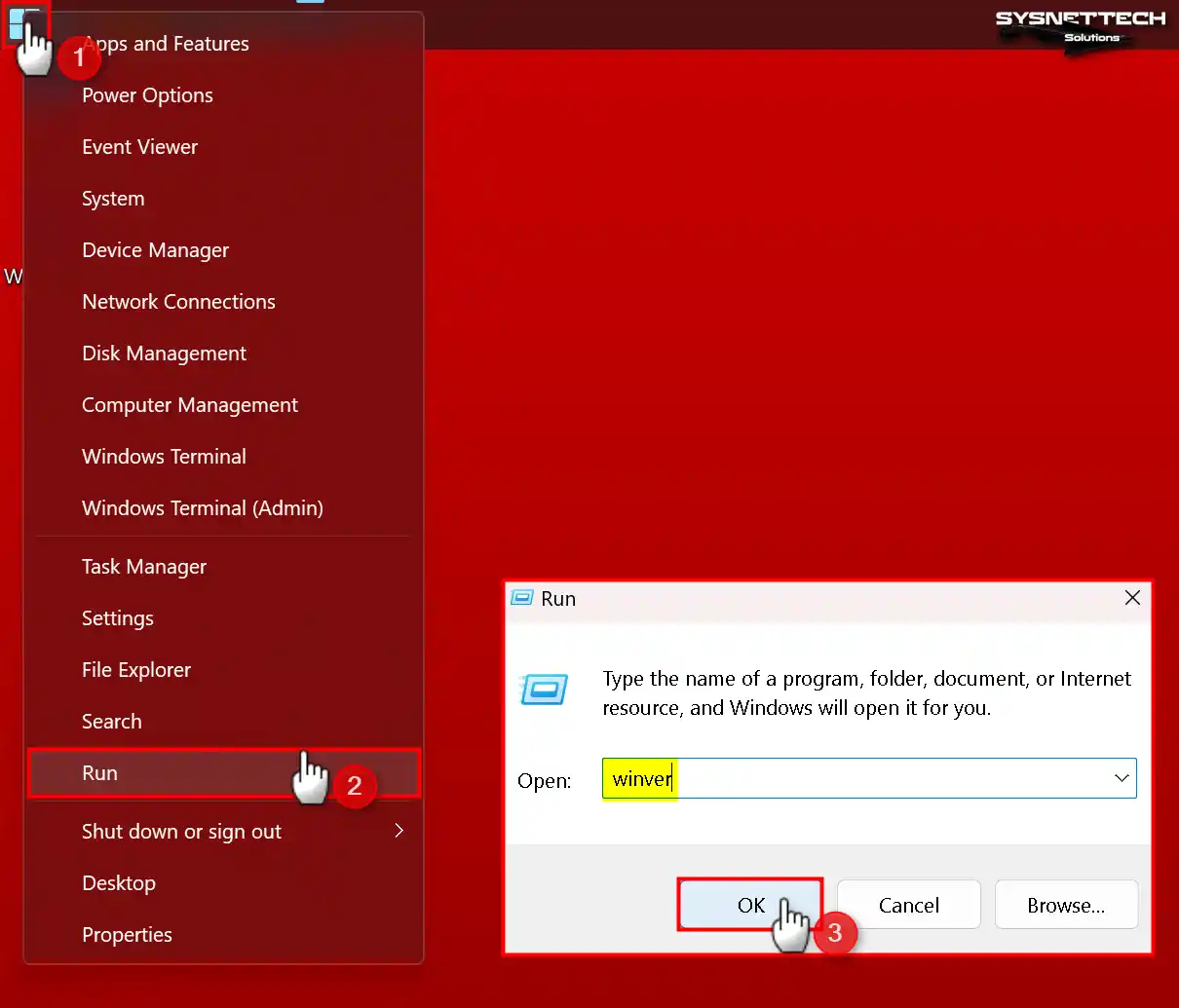
To check the system version in Windows 11, first right-click on the Start Menu and then select Run.
After opening the Run tool, type the ‘winver’ command in the Open: section and click OK.
Step 3
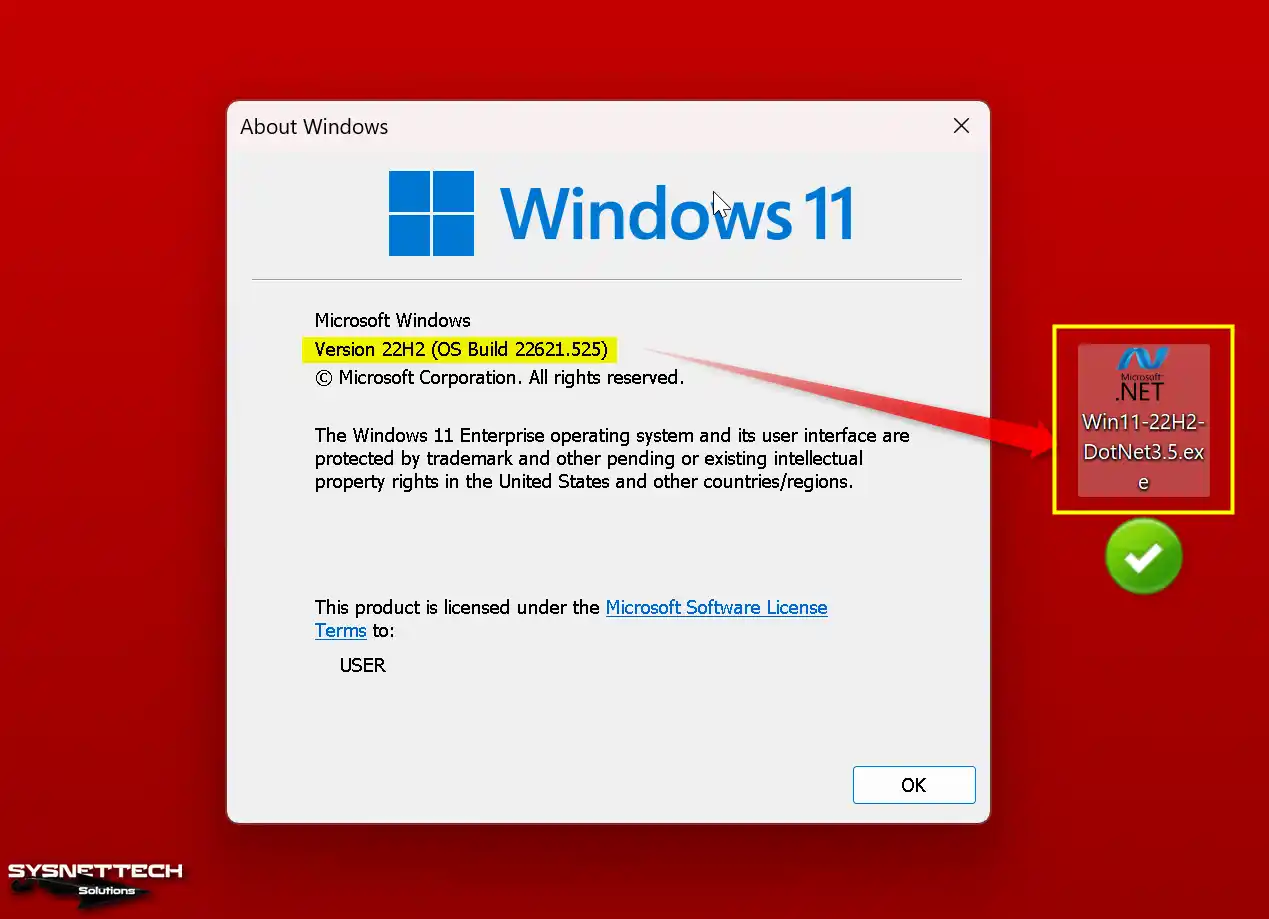
When a small information window titled About Windows opens, you will see the text, for example, 22H2 (OS Build 22621.525), in the Version section. This is the version of the operating system you are using. Therefore, according to this value, download the one that suits you from the table above.
Step 4
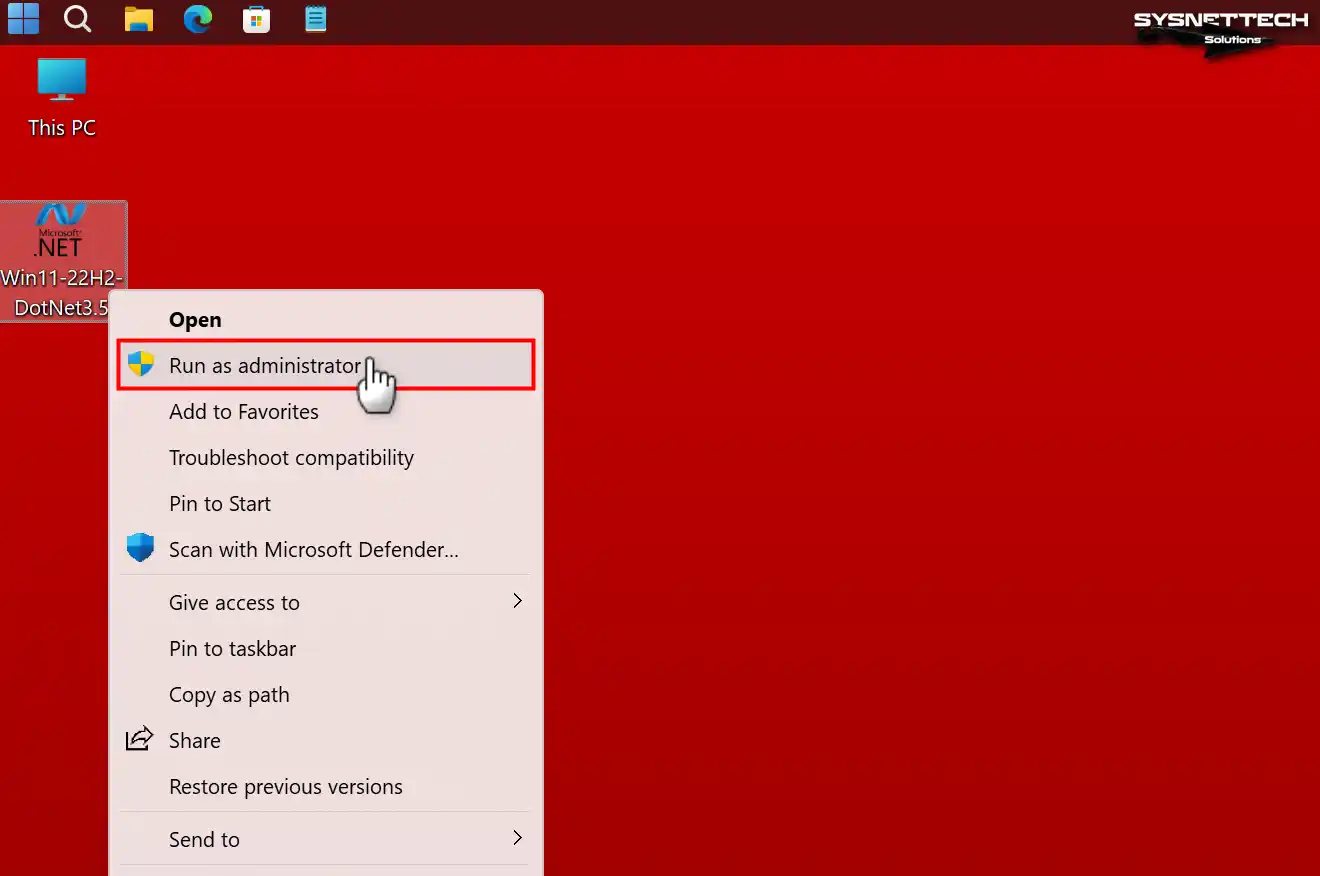
After downloading the ‘Win11-22H2-DotNet3.5.exe’ package for Windows 11 to your PC, right-click on it and select the Run as Administrator option.
Step 5
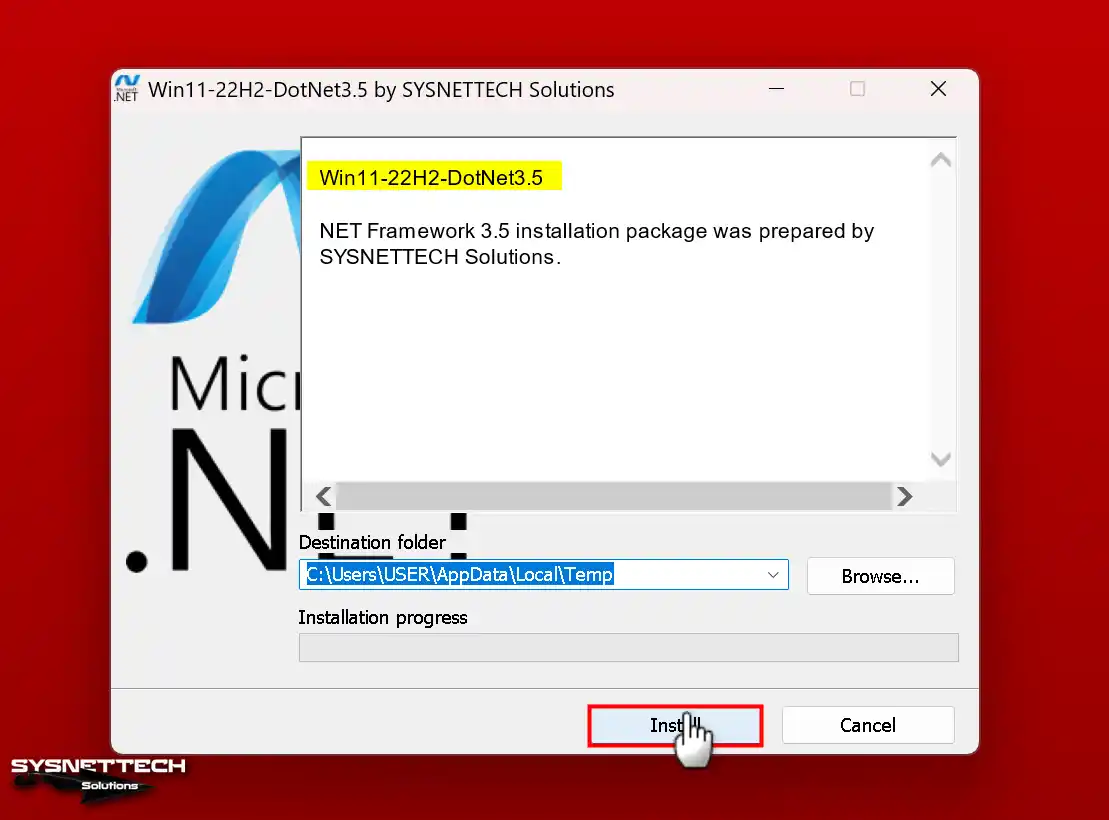
After opening the DotNet 3.5 installation wizard, click the Install button on this screen.
Step 6
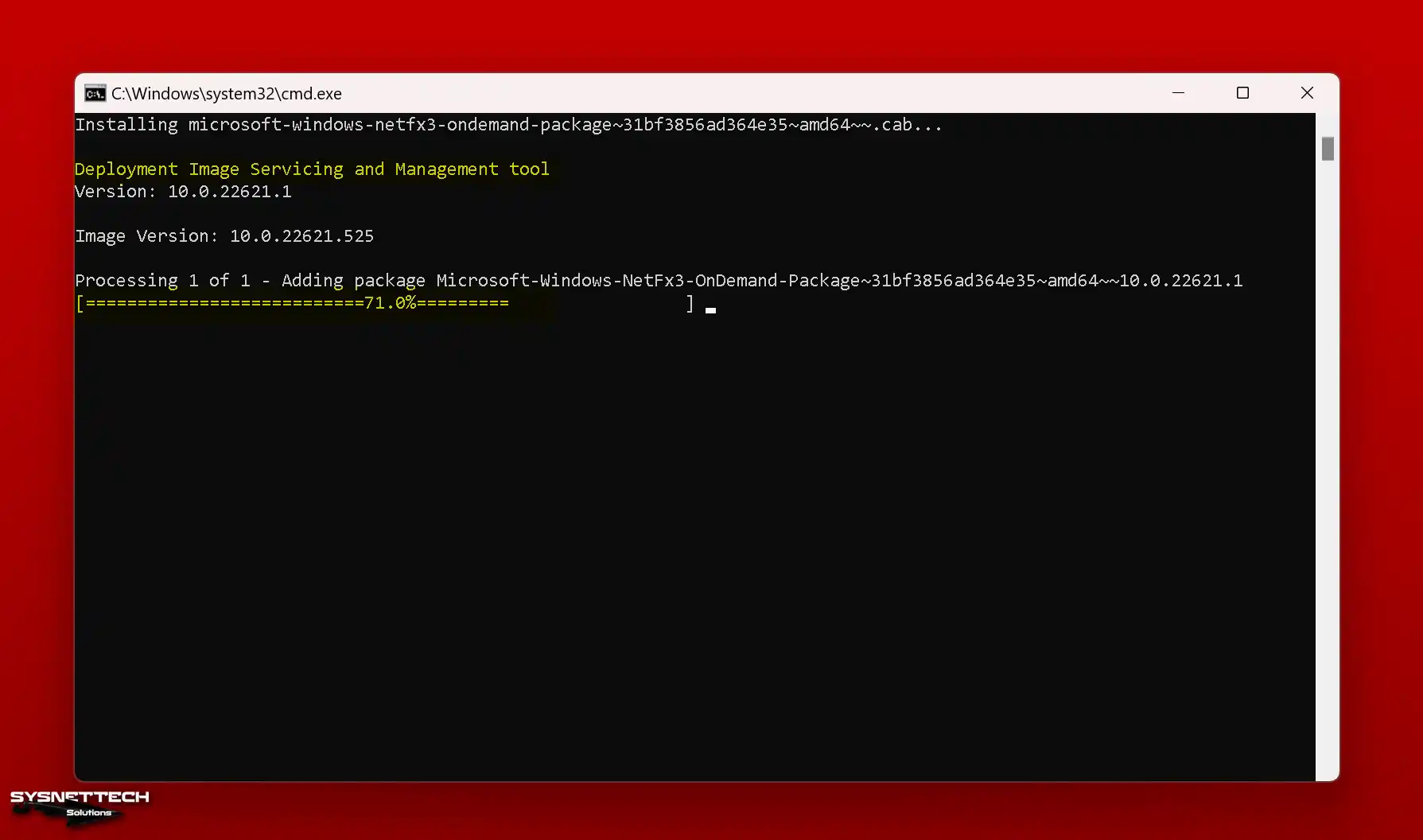
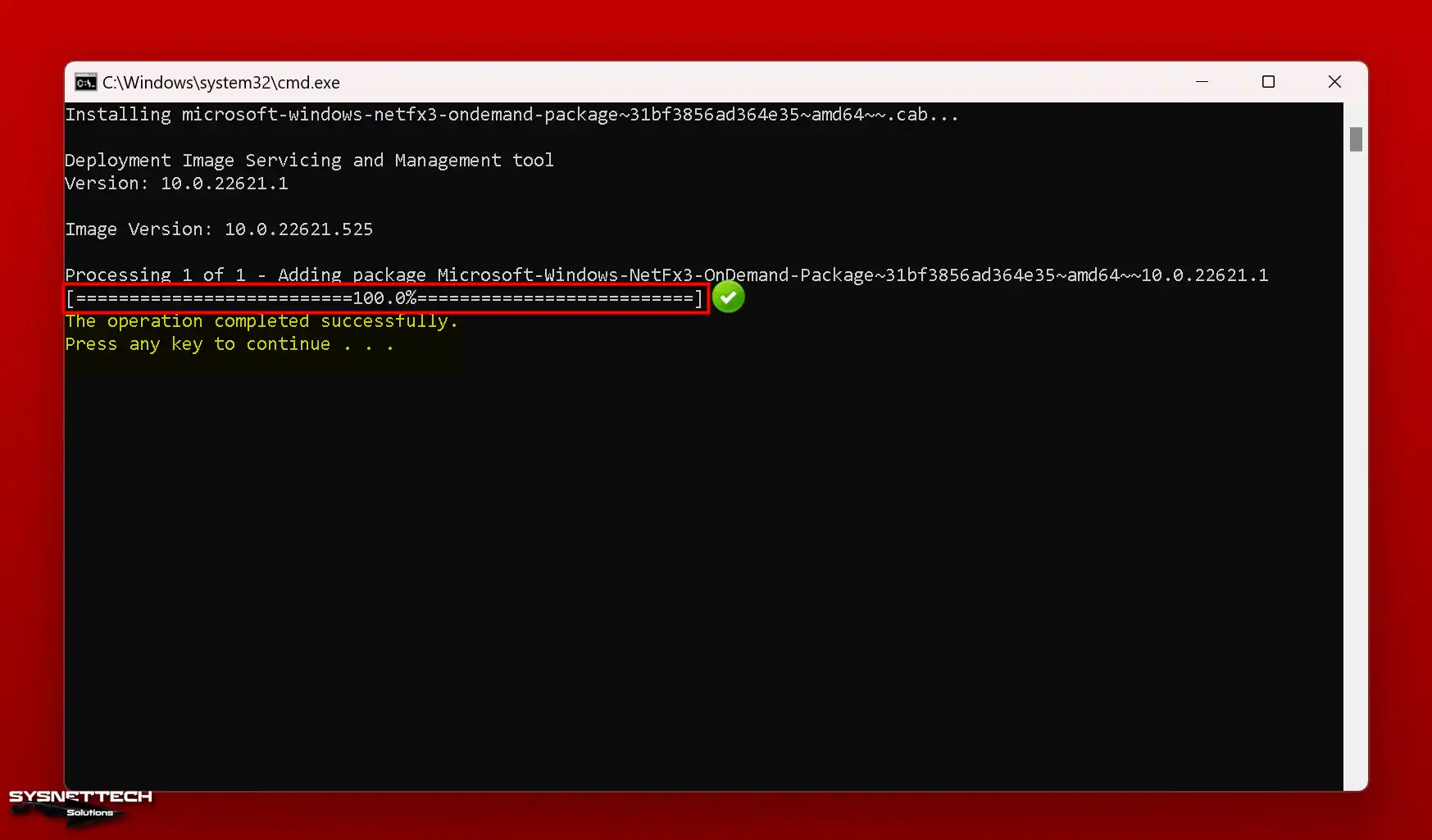
The DISM tool will show up after temporarily putting the needed installation files in the TEMP folder. This tool will adequately install the NET Framework 3.5 on your system. Just wait until the system finishes the job.
Step 7
In DISM, the process concludes when the ‘The operation completed successfully’ message appears. Then, press any key as instructed to close CMD and proceed.
Step 8
As in the beginning, revisit Windows Features and look in the .NET Framework box. This confirms a successful installation on your Windows 11 or any system.
Method 2: How to Enable NET Framework without the Internet on Windows 11, 10, or 8x
On the Microsoft Windows 10 system, you can install it in two different ways. In short, the first one involves using the Windows Installation media. The second option is to download and install an offline package.
To set up using the Windows 10 Installation Media step by step, follow the following steps.
Steps:
Step 1
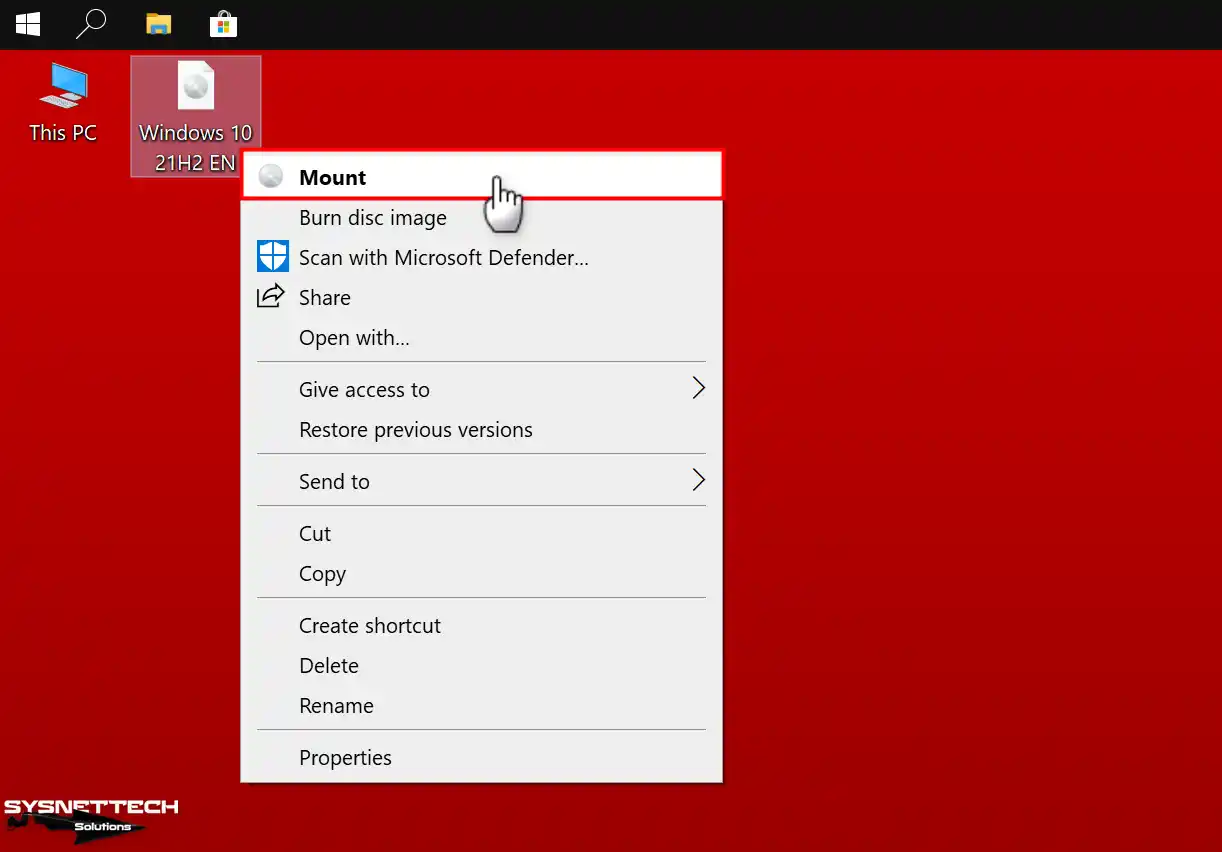
Insert the Windows 8x, 10, or 11 system installation media into your CD/DVD device. You can also use an ISO file if you don’t have Windows Media.
To mount the Windows ISO file of the system installed on your Host PC to your system, click the Right Button / Mount option on the file.
Step 2
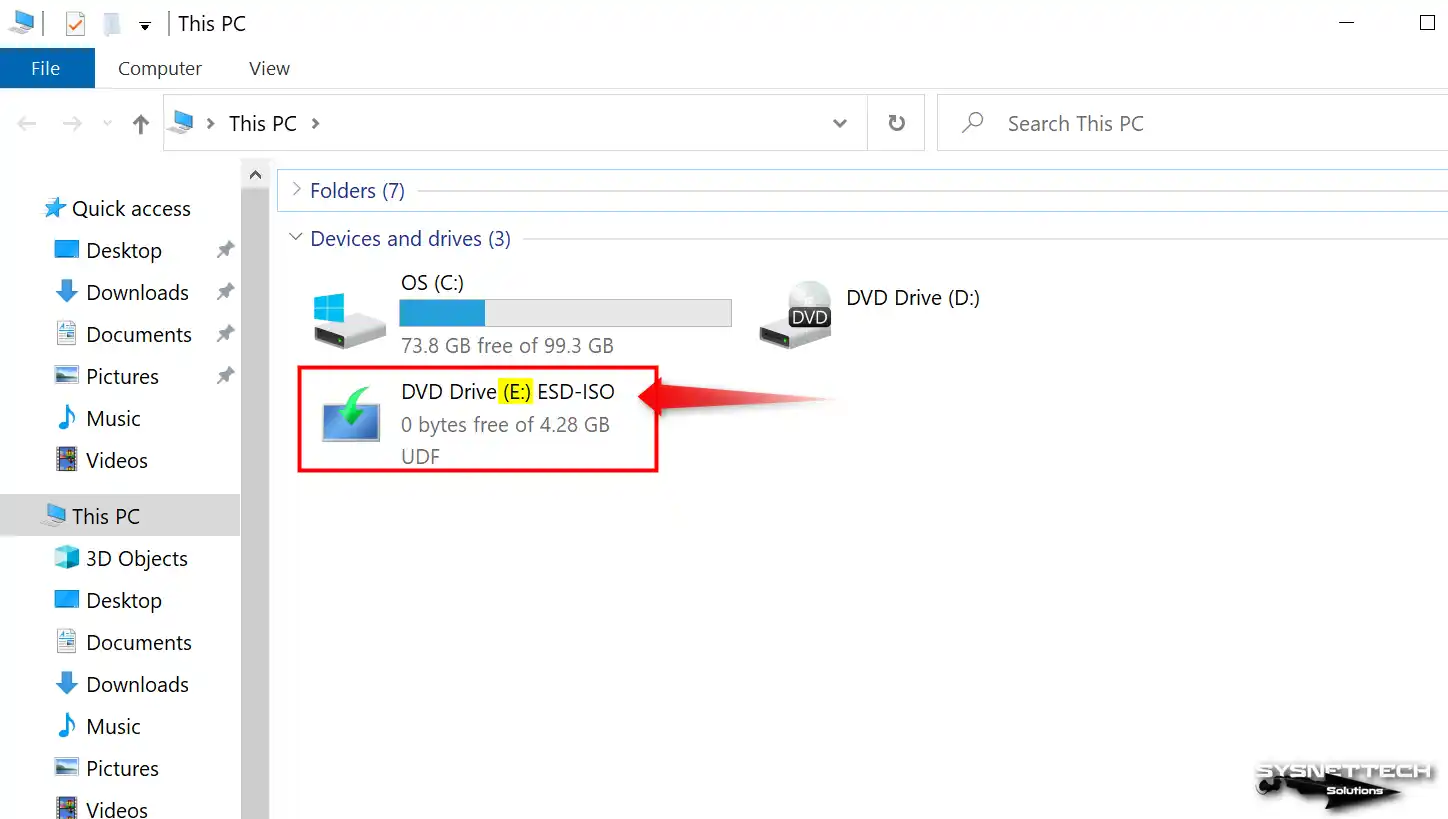
Click on the “My Computer” option and check the drive letter of the mounted ISO image.
Step 3
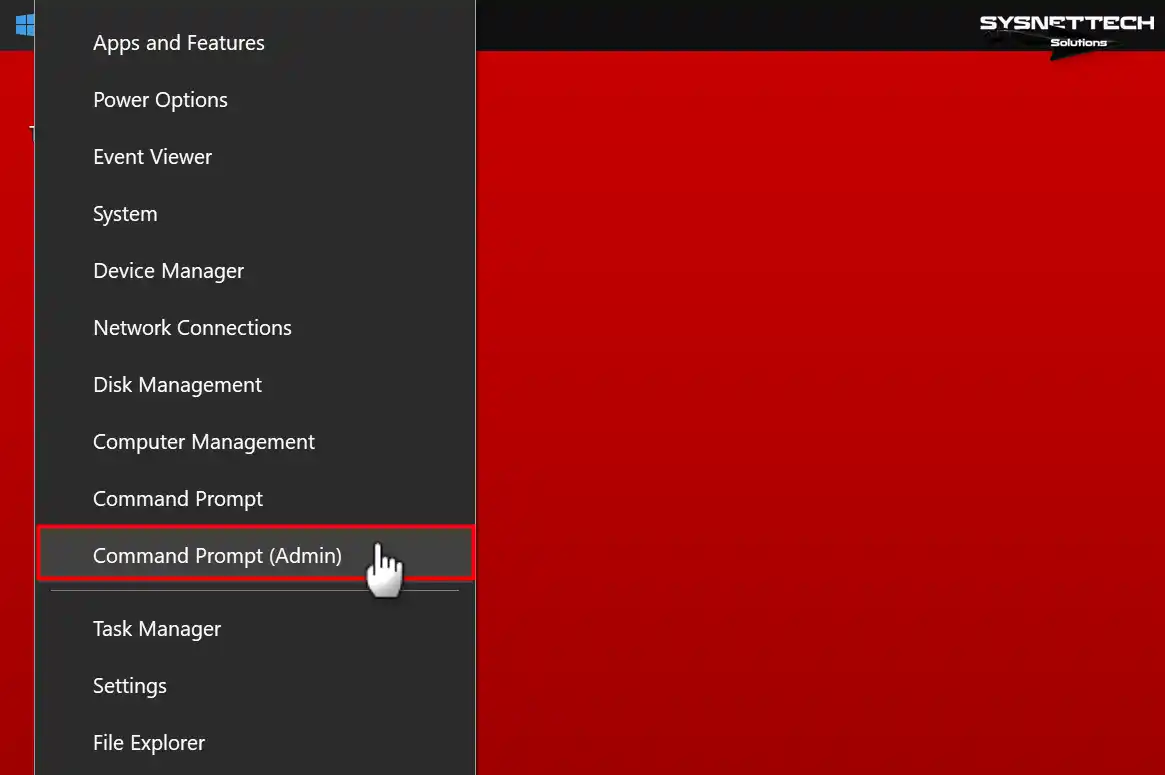
To run the CMD mechanism as an administrator, right-click the Start menu and select the Command Prompt (Admin) option.
Step 4
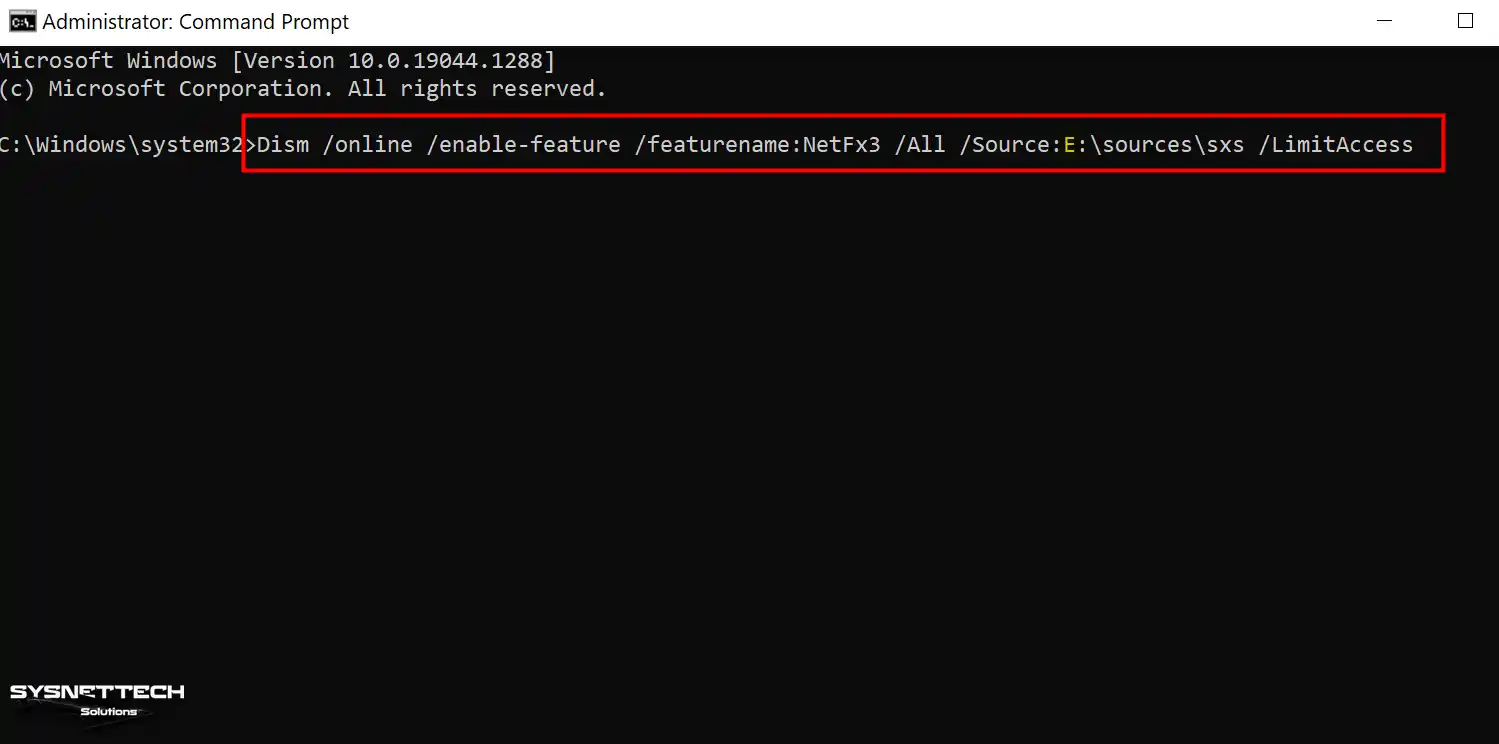
After opening the CMD prompt, type the following command for offline installation and press Enter. Also, the vital thing to note here is the drive letter in [ /Source:E:\sources\sxs ].
Dism /online /enable-feature /featurename:NetFx3 /All /Source:E:\sources\sxs /LimitAccess
Step 5
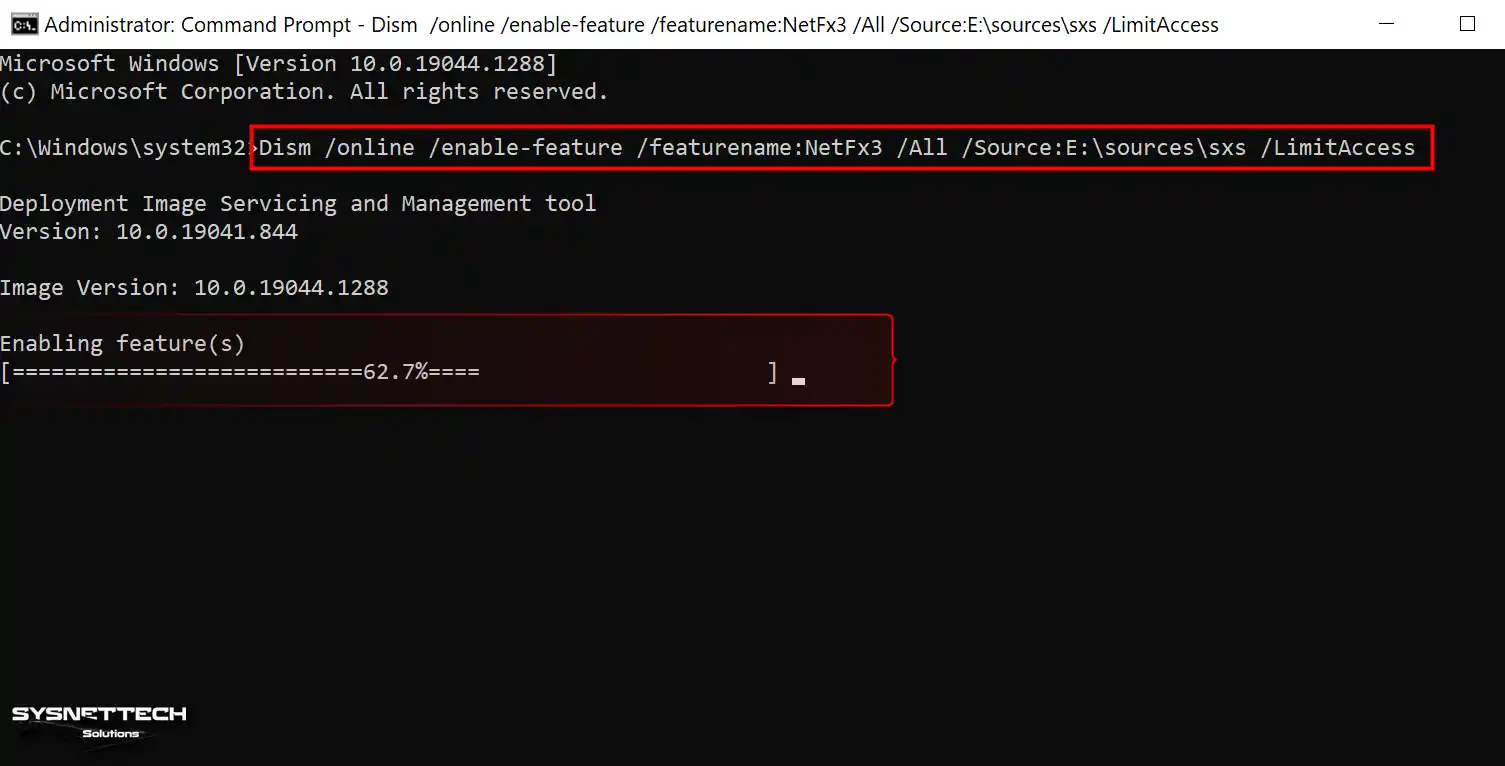
After checking the drive letter, start the setup quickly.
Step 6
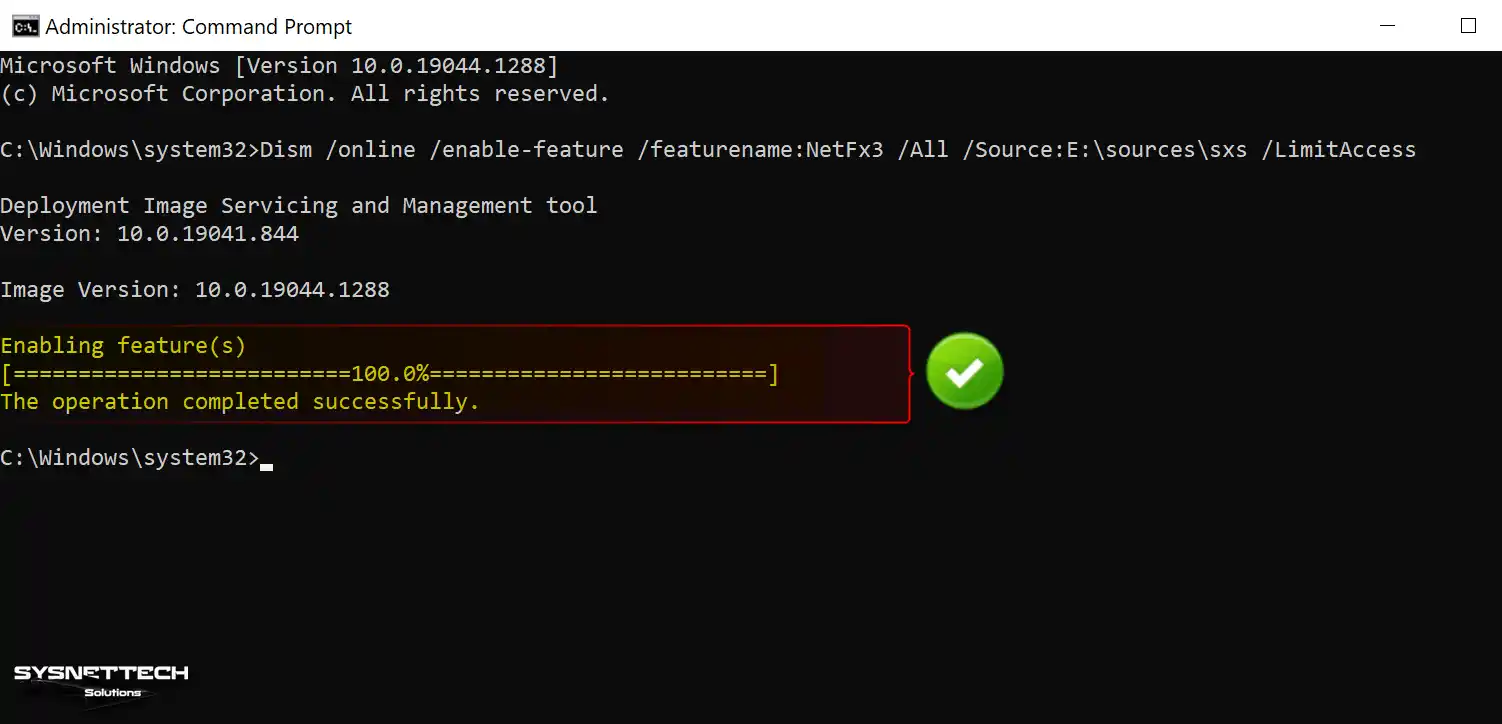
In conclusion, you’ve completed the DotNet setup on Windows 11, 10, or 8x without an Internet connection!
Step 7
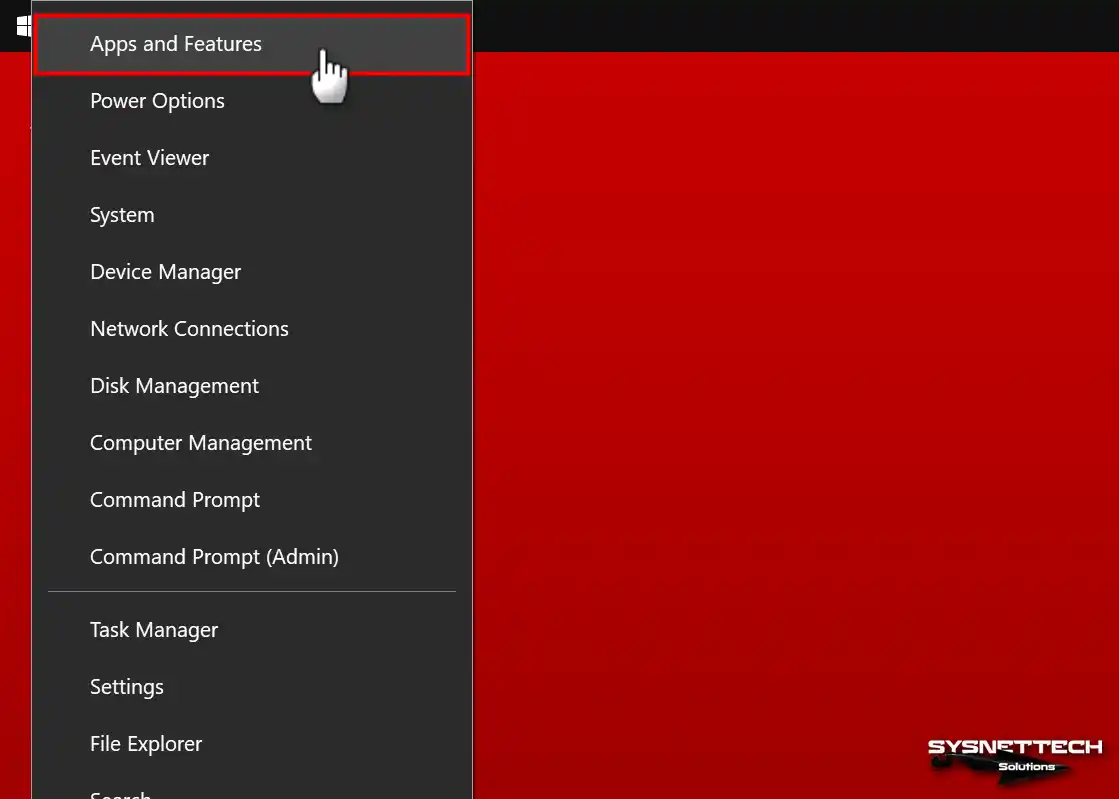
You must ensure your system has installed the necessary package at this stage. So, first, right-click on the Start menu and click on the “Programs and Features” option.
Step 8
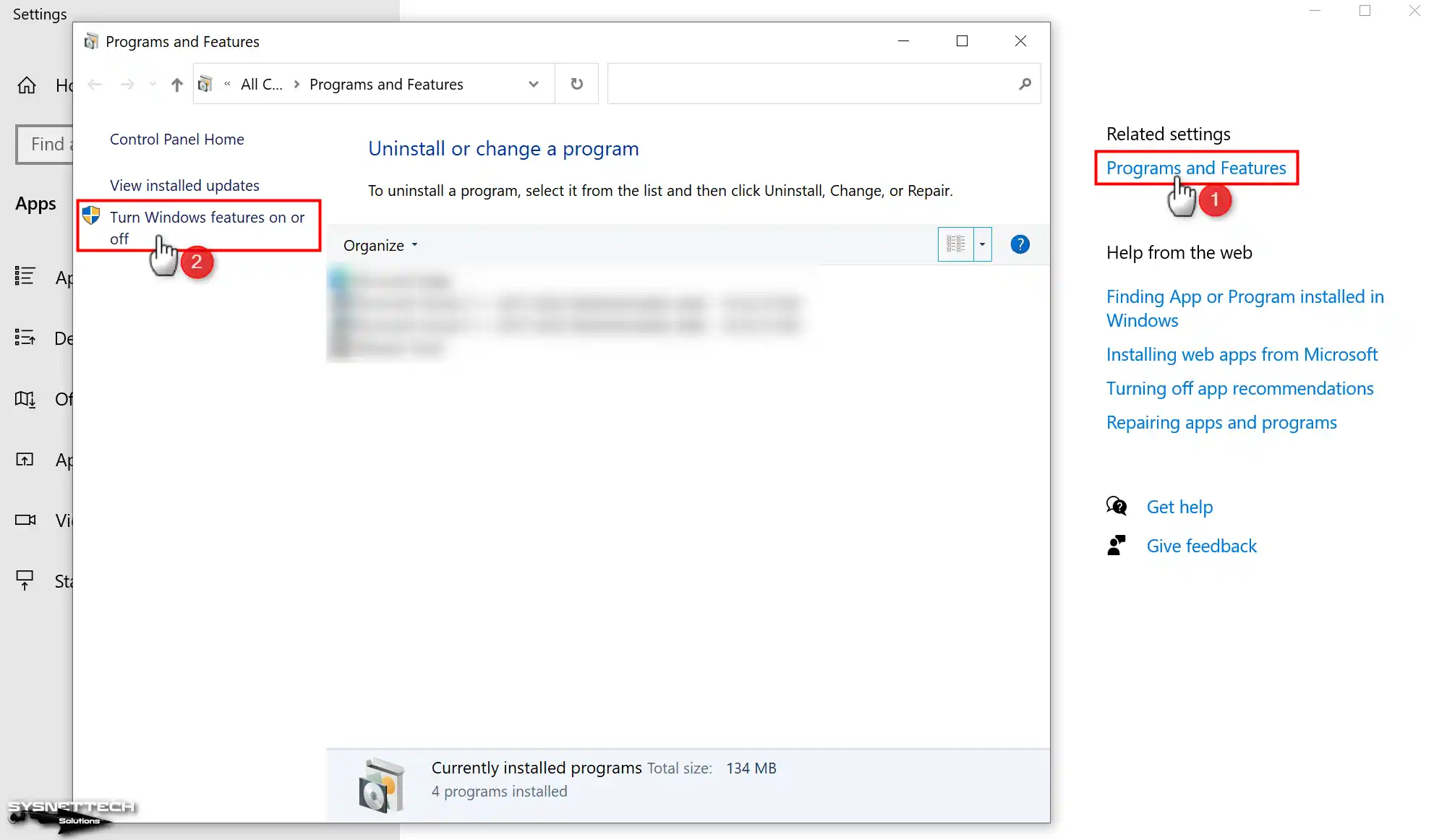
Click “Turn Windows features on or off” in the window to verify the installation process.
Step 9
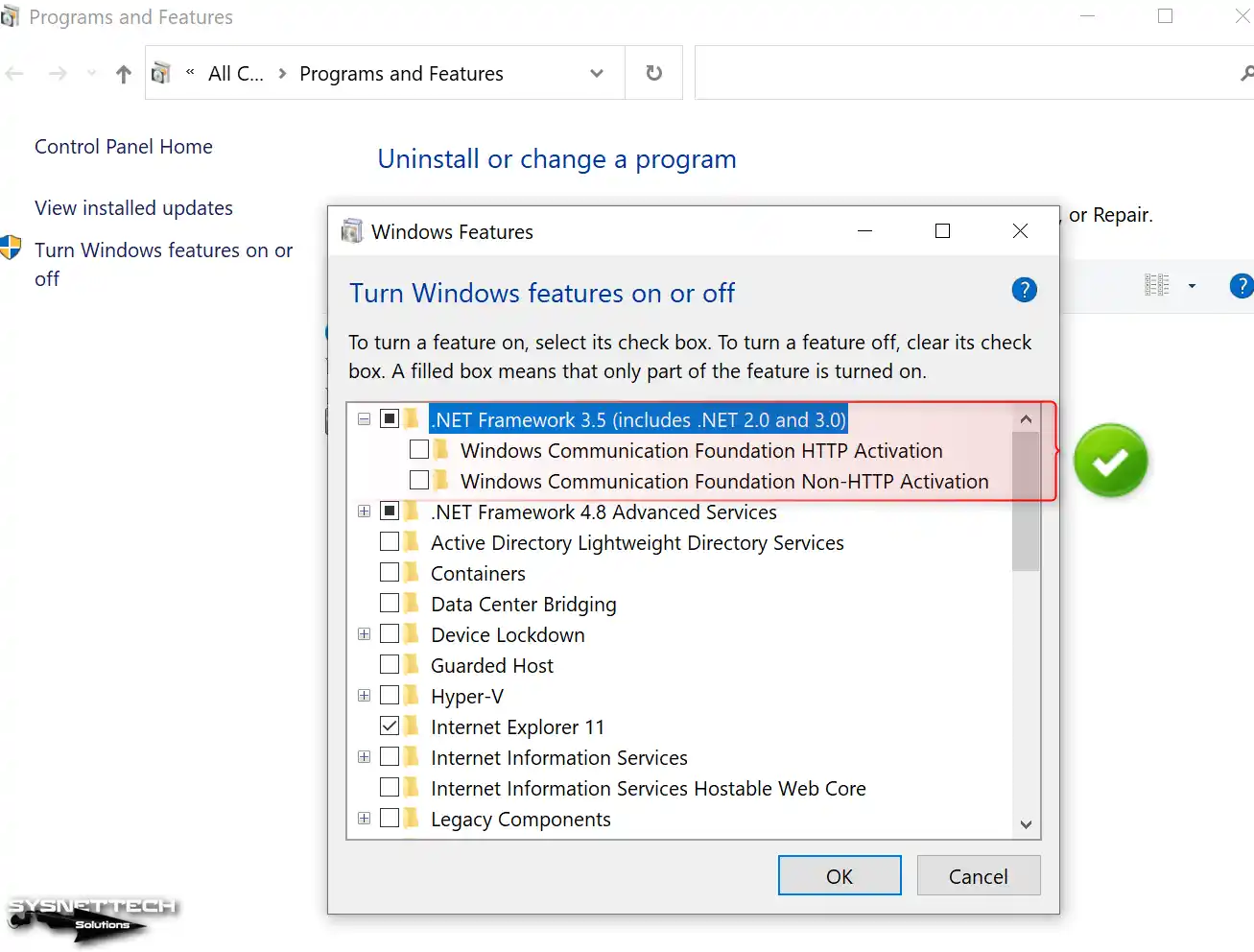
Your computer can confirm if it has .NET Framework 3.5 installed, which includes .NET 2.0 and 3.0.
Download CMD File
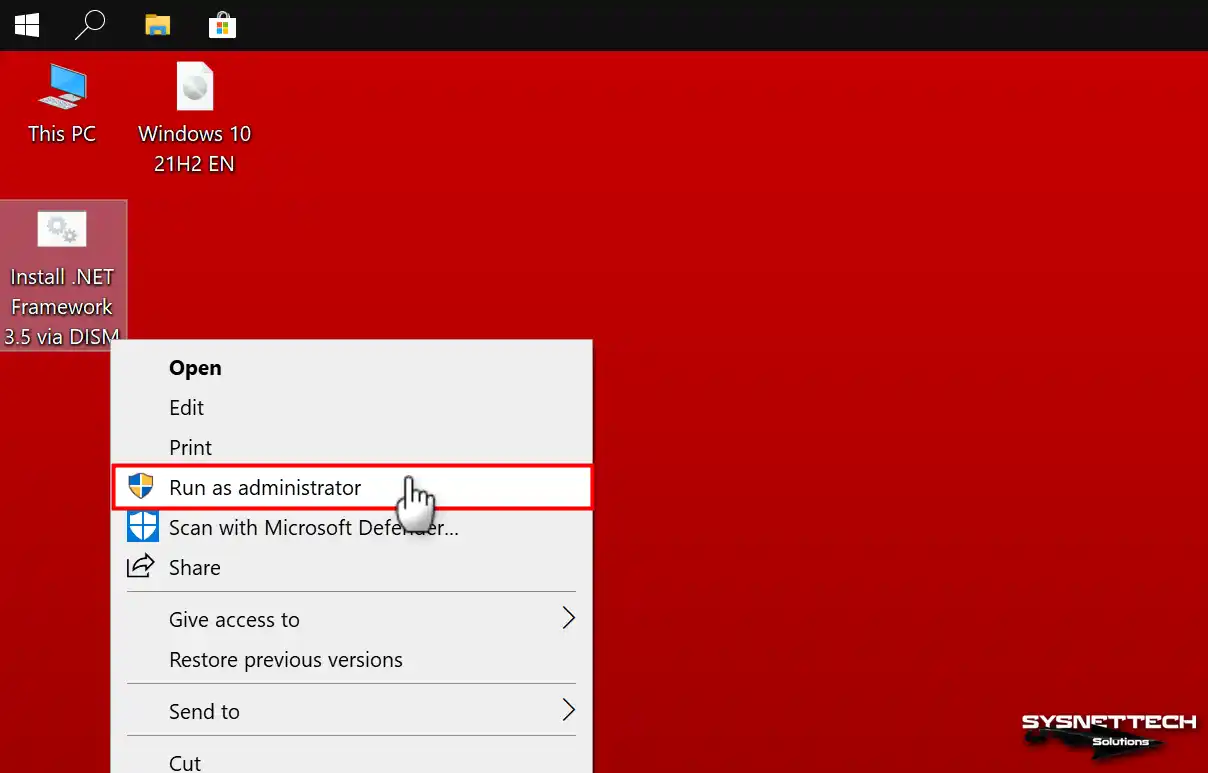
If you want to install it without writing the code, click the button below to download the CMD file to your computer. Before running the CMD file, add the drive letter assigned to your Windows installation media into the code and save the file.
Run the CMD file as an administrator, and then complete the installation.
How to Download the Latest NET Framework?
You should check Microsoft’s official sources to install the NET Framework versions newer than 3.5 on your system.
The .NET 3.5 version was more common for older Windows systems. However, nowadays, you should prefer newer versions for a modern system like Windows 11.
But if you’re on Windows 11, you might still have to install DotNet 3.5 to run older software made for it.
The latest stable version of the .NET Framework is 4.8. You can access and download Microsoft’s most up-to-date versions of the .NET Framework through this link.
How to Verify Whether the NET Framework is Installed using Regedit
You need to verify the DotNet Framework you installed on your computer, whether it was through an online or offline method. You can do this quickly, as we mentioned above.
To find out which versions are installed on your system, or more specifically, you should check the Registry Editor (Regedit).
For instance, if you installed DotNet 3.5 using an offline package and want to check if the installation was successful, start by opening Regedit.
After opening Regedit (Registry Editor), expand the HKEY_LOCAL_MACHINE\SOFTWARE\Microsoft\NET Framework Setup\NDP option.
Your PC has installed versions that are listed in the NDP directory.
- v2.0
- v3.0
- v3.5
- v4
- v4.0
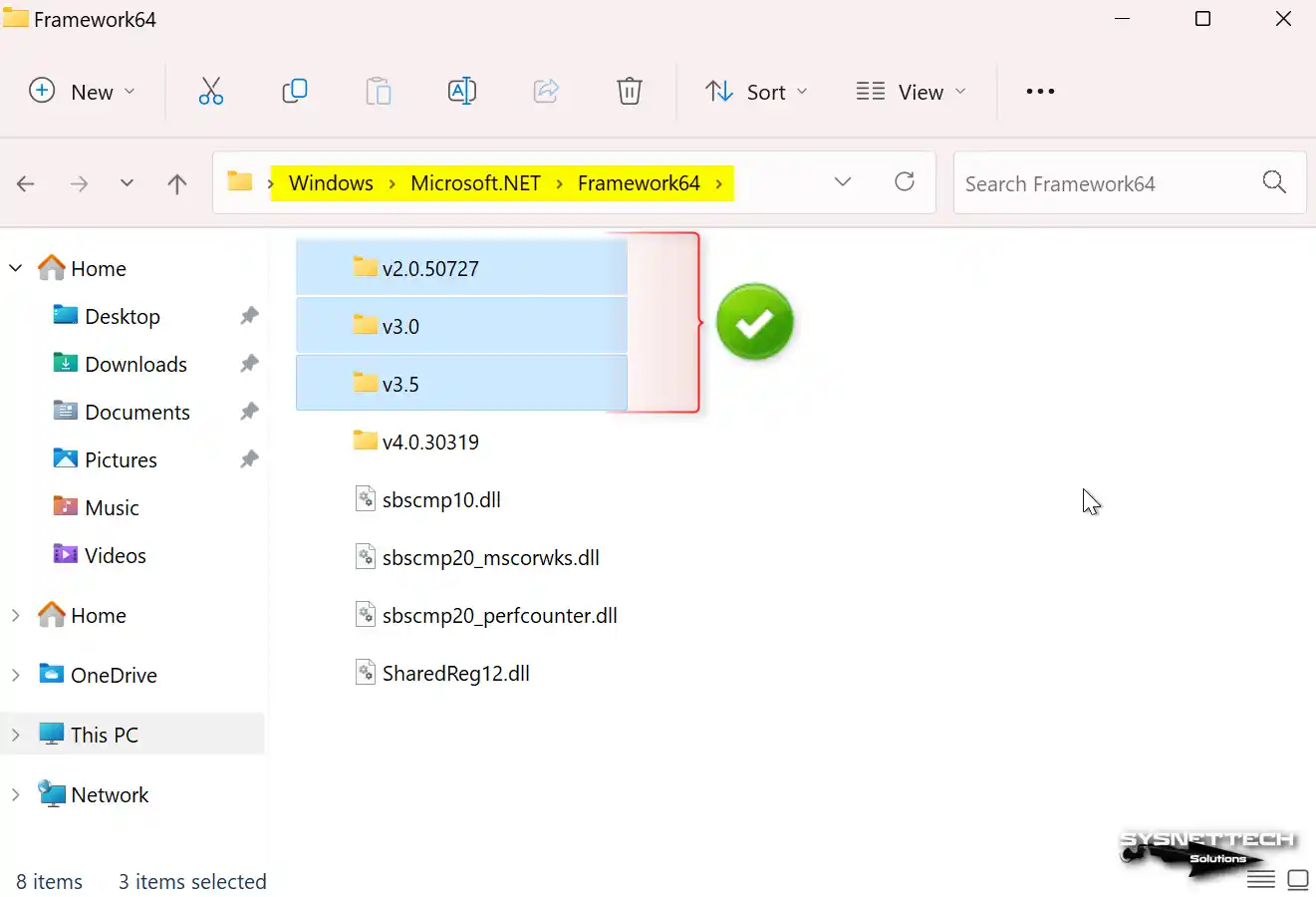
You can also double-check DotNet by looking in the Windows folder. To do this, go to the drive where you installed Windows. Find the C:\Windows\Microsoft.NET\Framework64 directory. In the Framework64 folder, you’ll find the DotNet versions installed on your PC.
How to Check NET Framework 3.5 Installation using PowerShell and CMD
There’s another way to confirm the NET Framework 3.5 software installation. Additionally, you’ve set it up using an offline method. Typically, users verify through the Control Panel. Alternatively, they can use tools like PowerShell or Command Prompt (CMD).
Step 1: Verifying DotNet 3.5 with PowerShell Command
If you’re using Windows 11, conveniently right-click on the Start menu. Choose Windows Terminal from the menu options for easy access. If you’re using Windows 10, you must open and use CMD.
You can use both PowerShell and CMD commands in the Windows Terminal tool. So, at this stage, we will first use the PowerShell command.
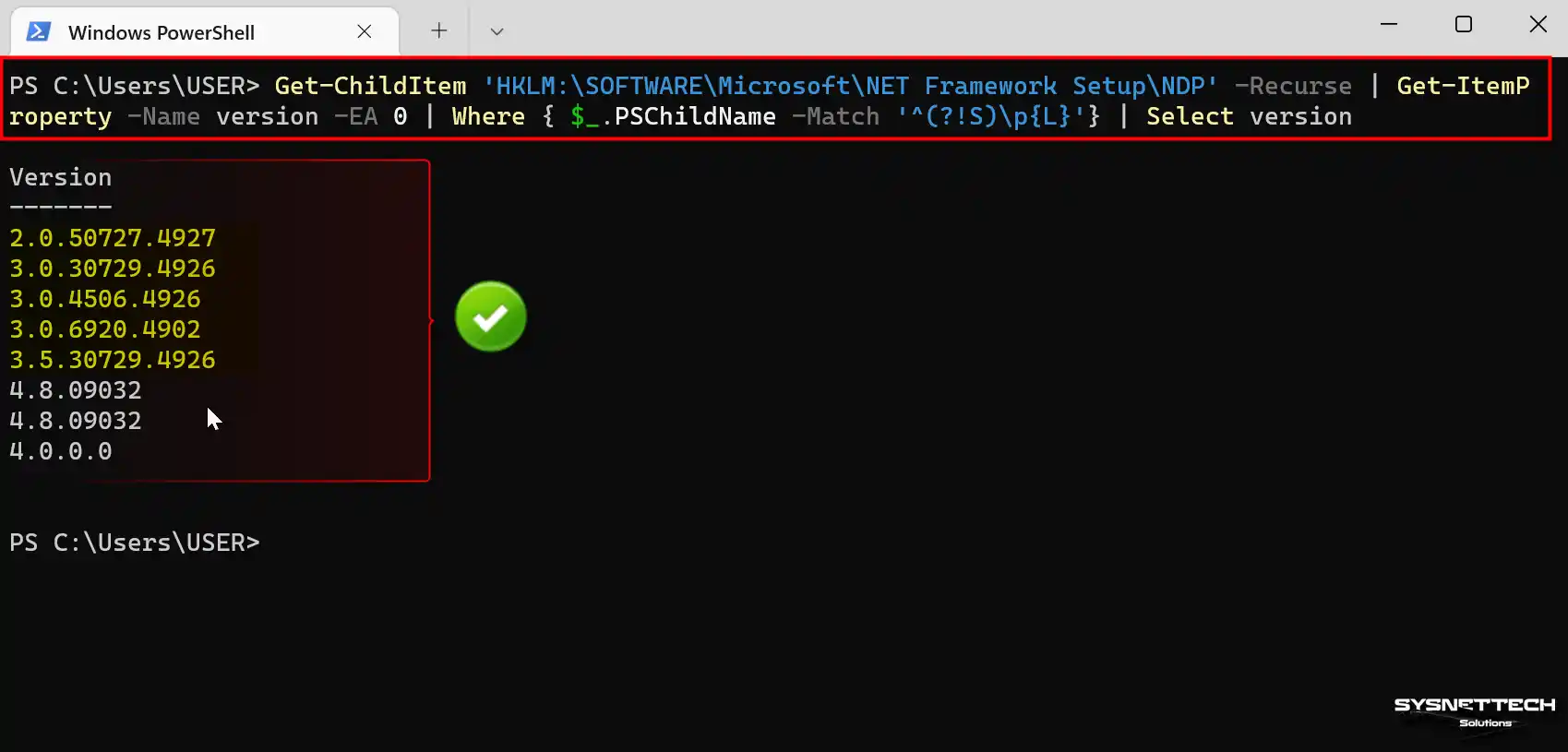
To check if you’ve installed the NET Framework using PowerShell, type the following command in the terminal:
Get-ChildItem 'HKLM:\SOFTWARE\Microsoft\NET Framework Setup\NDP' -Recurse | Get-ItemProperty -Name version -EA 0 | Where { $_.PSChildName -Match '^(?!S)\p{L}'} | Select versionOnce you run the command, you’ll see the installed DotNet versions on your system, just like in the image below.
Step 2: Verifying DotNet 3.5 with CMD Command
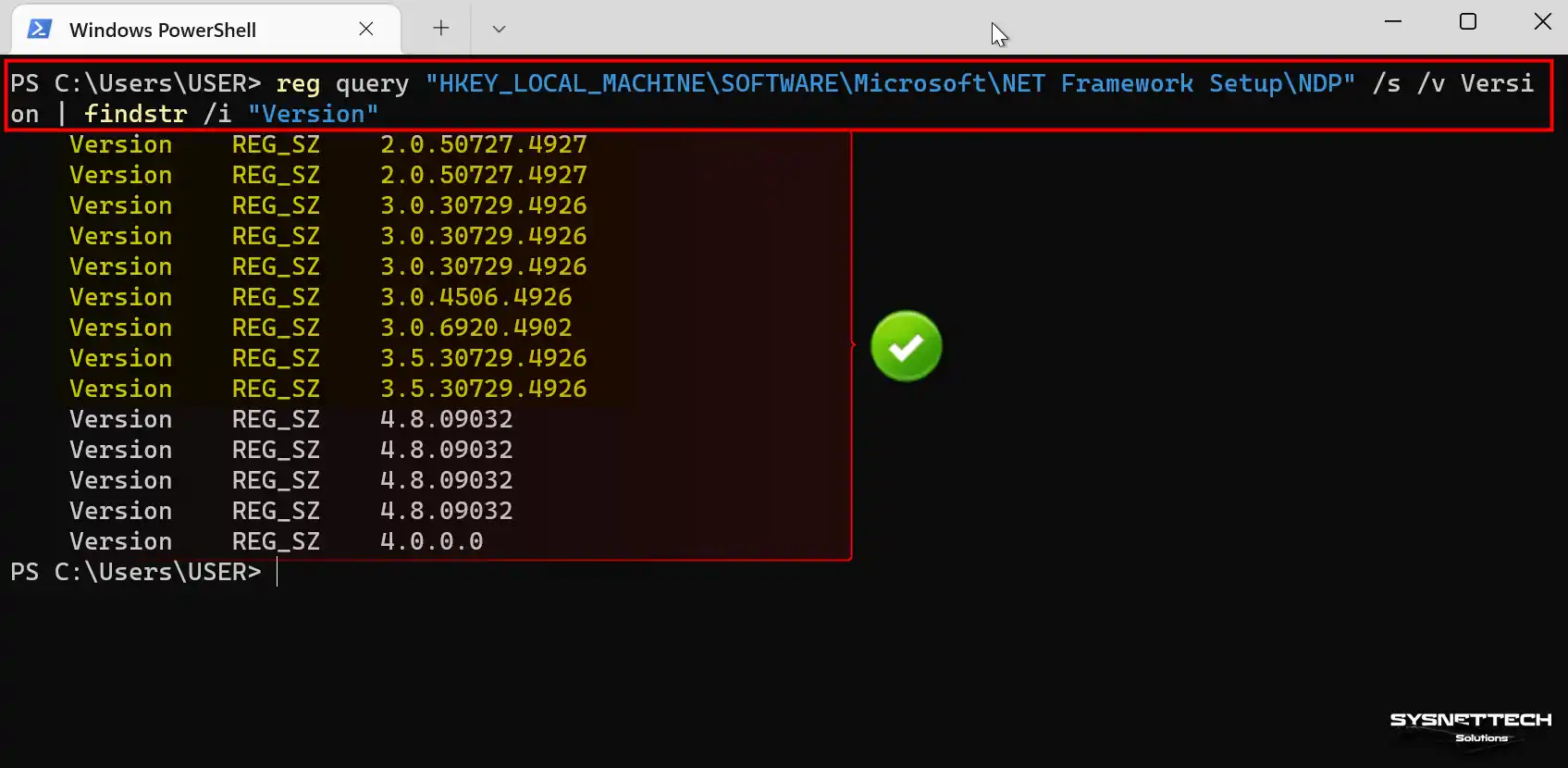
You can also check using the CMD command prompt, as you did earlier. So, in the Windows Terminal, clear the previous command by typing ‘cls’ and then enter the following command:
reg query "HKEY_LOCAL_MACHINE\SOFTWARE\Microsoft\NET Framework Setup\NDP" /s /v Version | findstr /i "Version"As a result, once you run the CMD command, you can confirm that you’ve installed DotNet 3.5. It’s similar to the image below.
Checking the Windows setup date with CMD is also very easy; one single command is enough. Now let us take this a step further: if you wonder where you can use this info, it proves useful for system care.
Our Video Contents for Your Better Understanding
Video 1
Video 2
Frequently Asked Questions About NET 3.5 (FAQ)
- Is NET Framework 3.5 necessary?
- Is NET Framework 3.5 still supported?
- Why is NET Framework 3.5 not installed?
- What occurs if the .NET Framework is not installed?
- Where is .NET 3.5 installed?
- Can I install .NET 3.5 without an Internet connection?
- Does .NET Framework 3.5 include .NET 2.0 and 3.0?
- Can I usually get NET Framework over the Internet?
Conclusion
In this article, we’ve shared download links for NET Framework 3.5. This software is essential for specific third-party applications on Windows-based operating systems. Remember, this package is only valid for version 3.5.
Furthermore, you can also use this package on newer-generation Windows versions. But we recommend installing the latest version of the DotNet package. Microsoft continuously updates it on your new PC or operating system.

14 People Shared Their Experience
Thank you for sharing
Good morning, sir. There are missing links for Win11 versions, can you check it pls?
Hello, good morning, sir. As soon as I saw your comment, I noticed that the links were missing. I am very sorry for this situation. I think it happened during the update, but I updated it now.
No se puede instalar en la versión 24h2. Por favor ayuda
Not working ! Why do we have to deal with this crap anyway ? Nothing but problems ! Win is getting more and more like linux was in the past ! Can’t use software due no working dotnet 3.5 install crap ! Microsoft full of crap !
As mentioned by “Jorge 8 October 2024” above,… It would be very appreciated if could update/ or add “Windows 11 version 23H2” to your download links,…
Again thank you for your support to the community and help,….
Best regards, Late Artistico
Dear brother
wish this comment would get you well
I need of net framework 3.5 for windows 11 v24h2.
could you please upload the file here
Hocam merhabalar paylaşımlarınız için çok teşekkürler win 11 24h versiyonu için bi güncelleme paylaşacakmısınız? malum güncellemeler her geçen gün devam ediyor.
For Windows 8.1 use this code:
“Dism /online /enable-feature /featurename:NetFx3 /All /Source::\sources\sxs /LimitAccess”
https://learn.microsoft.com/en-gb/troubleshoot/windows-client/application-management/dotnet-framework-35-installation-error
Thank you, I want to ask you about NET Framework 3.5 for Windows 11 version 24h2. Could you please provide it.
not work for Windows 11 version 25H2
Hi,
Can please provide .NET framework 3.5 (Including 3.0 and 2.0) for Window 11 version 25H2.
Well, all of u die hard win users my self included (due soft not running on Linux) MS is constantly screwing up and win is going to worse and worse not for better, complete screw ups with dotnets, updates, administrative limitations, at the end of the day u can tame win only if u strip it down to cli, then u get performance and control over it. That realization takes me time and nerves … The future is Linux , MS will newer catch the raw Linux performance also security, that said Win is starting to get obsolete if curent leadership continues that path , now some would say ARM would save it, no it wont, while win kernel can run on it natively software isnt rewritten to match raw execution (using emulation layers) and thats performance drop for pro performance soft which runs on win only, the same reason why many do not use linux or cant for the same reason. When soft dev realize that ms win cant deliver performance, we get out on linux they will jump the ship and i already make assumption that CashyOS on RTX Spark would break speed performance records onece support is fully given. Running win on such hardware is an insult to all end users ! And WSL is a joke produced by MS ! now CPU has to run both core oseses and that doesnt make it faster. In near future all of u/us will run Linux believe it or not !
Spot on! You’ve perfectly highlighted why so many ‘die-hard’ Windows users feel frustrated these days. Dealing with workaround issues, like having to manually install .NET Framework 3.5 offline, is exactly the kind of friction that drives people toward Linux. Until the software ecosystem fully transitions, we’re stuck taming Windows to get our work done. Thanks for sharing such an insightful and detailed take on the future of OS performance!